

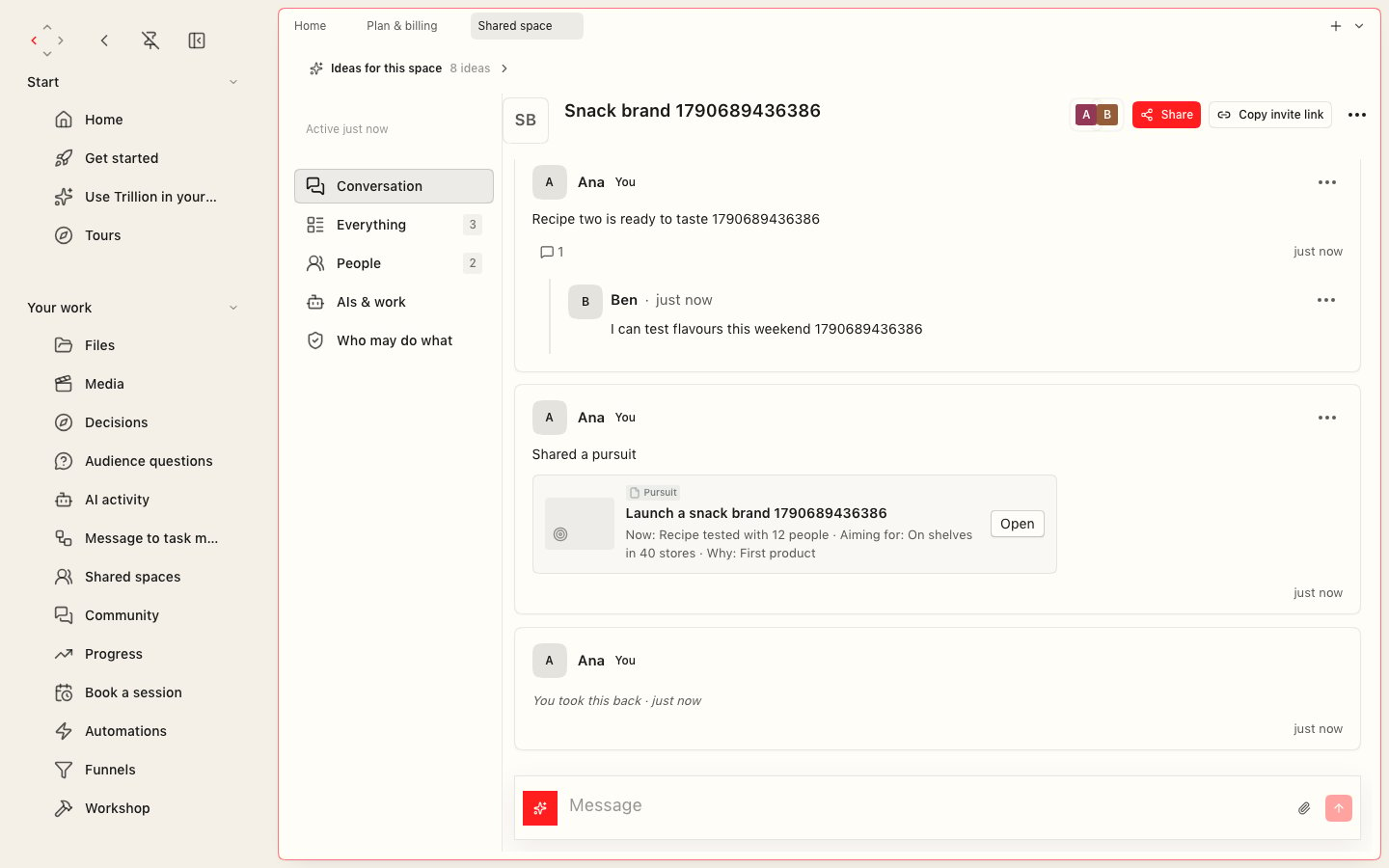
A shared space: the conversation, a pursuit one member shared into it, and something that member took back.
Start a space and bring people in
1
Start it
Open Shared spaces and choose New project, then give it a name. You start in it alone. You can also ask your AI to start one: a group, a project, an event, or a one-to-one.
2
Invite someone
Choose Copy invite link and send the link to the one person it is for. Whoever opens it signed in to Trillion sees the space’s name and joins. A link works once, lasts 7 days unless your AI sets it longer (at most 30), and stops working if you stop it or leave the space. You can also ask your AI to invite someone you found in the network; they choose whether to join.
3
Answer invitations
Invitations waiting for you show on the Shared spaces list with Join and Decline. Declining is never told to the person who asked, and you can be invited again later.
What a space shows
The Shared spaces list shows how many new items other members added since you last looked.
Share something in
Choose Share and pick one of your pursuits, decisions or files. Only the parts meant for others go in:- A pursuit shares its name, where it is now, where it should get to, and why it matters. The rest of your Trillion stays yours.
- A decision leaves behind the pursuits it was weighed against.
- A file stays in your Trillion. Members open it through the space for as long as you share it.
Take something back
- Withdraw removes something you put in a space: its words are erased for everyone, and a note that you withdrew it stays.
- Hide hides an item from everyone the rules do not let hide or show things. They see only that it is hidden and by whom. Show again brings it back.
- Leave (in the space’s menu) takes you out. You stop seeing what is in it until someone invites you again, and the others can no longer reach your contact through it. What you shared while you were a member stays there.
Who may do what
Whoever starts a space can change its rules at first. A rule allows or stops an action (adding things, hiding them, inviting, changing the rules) for anyone, for named members, or for a member type such as “Editor” that the space adds itself. A change that would leave nobody able to change the rules is refused. Everything the screen offers you follows these rules, so you are never shown a button the space would refuse.AIs in a space
A member can put one of their AIs to work in a space. It sees only that space, never anyone’s private Trillion. On AIs & work, choose Hand it a job next to an AI and say what it should do. Everyone in the space sees the job and its result, so put only what belongs there.Keys that reach only your spaces
When an AI app connects to your account, you choose what it can reach: everything in your account, only your private Trillion, or only the shared spaces you pick. You can change this later on Account & security with Change what it reaches. For an AI that signs in with a key instead, ask your AI to make one with exactly the reach you want:
A key can never reach further than the sign-in that made it. It is shown once, and you turn it off on Account & security.
Bring in your ChatGPT chats
You can bring earlier chats into a space word for word, with the files they carried, so everyone there can read them.1
Export your chats from ChatGPT
Request your data export from ChatGPT and unzip it.
2
Upload the whole export folder to Files
Upload the whole folder, not only
conversations.json: the pictures and files the chats carried sit beside it, and Trillion finds them there. See Files.3
Bring it in
In the space, open the attach menu next to the message box, choose Bring in a chat export, and pick the export. Trillion asks once, then brings the chats in.