

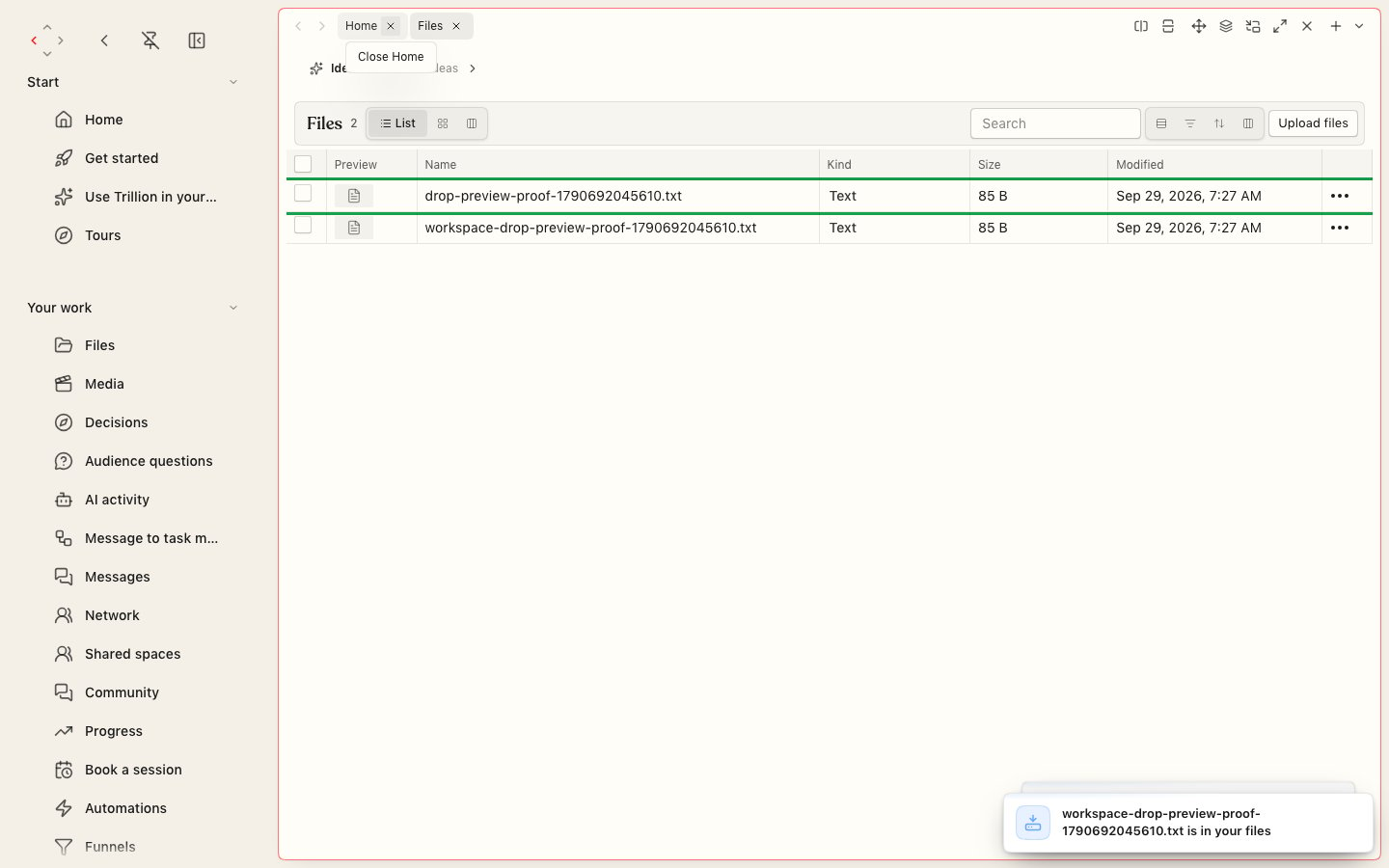
The Files screen: every file and folder, with search, views and Upload files.
Upload files
1
Open Files
Open Files in the sidebar at app.gettrillion.ai.
2
Add them
Choose Upload files and pick files from your computer, or drop them anywhere on the screen.
3
See them arrive
A notice tells you when each file is in your files. A large file can be found, read and played by its name while the rest of it is still arriving.
Open and preview
Open any file to see it in place: a video or sound plays, and a picture, PDF, text, code or Office document shows. In the list, pictures show as themselves, videos get a still and a strip of frames you can scrub, and sounds get a waveform. These small previews are made once and kept with the file. Media gathers your recordings and what your tools made, and lets you search for what is said in them.What your AI can do with your files
Ask in plain words (“save this transcript to my files”, “show me the video you just made”) and your AI picks the tool.- Save a file. From text it wrote, from a small file’s contents, from a web address that serves the file (any size), or from a file you attached to the chat. Bytes you already have are not stored twice: the new name simply points at them.
- Upload a big file from a computer. Your AI starts an upload and sends the file’s bytes straight from the computer it runs on, in parts when it is large.
- Read a file. Text comes back as text, and a picture comes back as an image your AI can look at.
- Show you a file. A picture, video or sound appears right in the chat, where the app draws tool results. Reading a file does not show it to you; showing does.
- Find and list. By name or folder. Several versions of the same file in one folder (copies, numbered versions, exports, backups) are grouped so your AI works from the latest.
- Remember what it worked out. A transcript, a summary or measured facts about a file are kept with it, so no AI has to work them out again.
Open your files in Finder
Your files can be opened in Finder, or any app that opens a network folder, by the names they were given. This folder is read-only.1
Make a personal key
Open Account & security and make a personal key. Copy it once.
2
Connect to the folder
In Finder choose Go, then Connect to Server, and enter:
3
Sign in
Use any name, and paste your personal key as the password.