

What is in the app
When you are signed in, the tab bar has Home, Shared, Record, Files and More.
Decisions, shared spaces, AI activity, automations and connections open as native screens. Any other screen opens its own page from app.gettrillion.ai inside the app, where you sign in once with your passkey.
Record a voice memo
1
Open Record
Tap Record in the tab bar.
2
Talk
Your words appear as you say them: settled lines with the moment each was said, and the words still being heard in grey. Scroll back to read while it keeps recording; Back to now returns to the newest words. Recording carries on with the screen locked.
3
Finish
Pause keeps the same memo. Discard throws it away on the phone. Done keeps the sound and a transcript in your Files under Recordings from iPhone, by date, and hands both to your AI.
Formats
Formats (under More) shows the ways you write and speak: your own saved formats first, then the starters every account has, such as a blog post, a newsletter, an X thread, a short video or a YouTube video. Type a thought and every format fills with it at once. Open one to read it as a script in large type, Record it with the script pinned above your live words, or tap Have my AI write it.Add to Trillion from any app
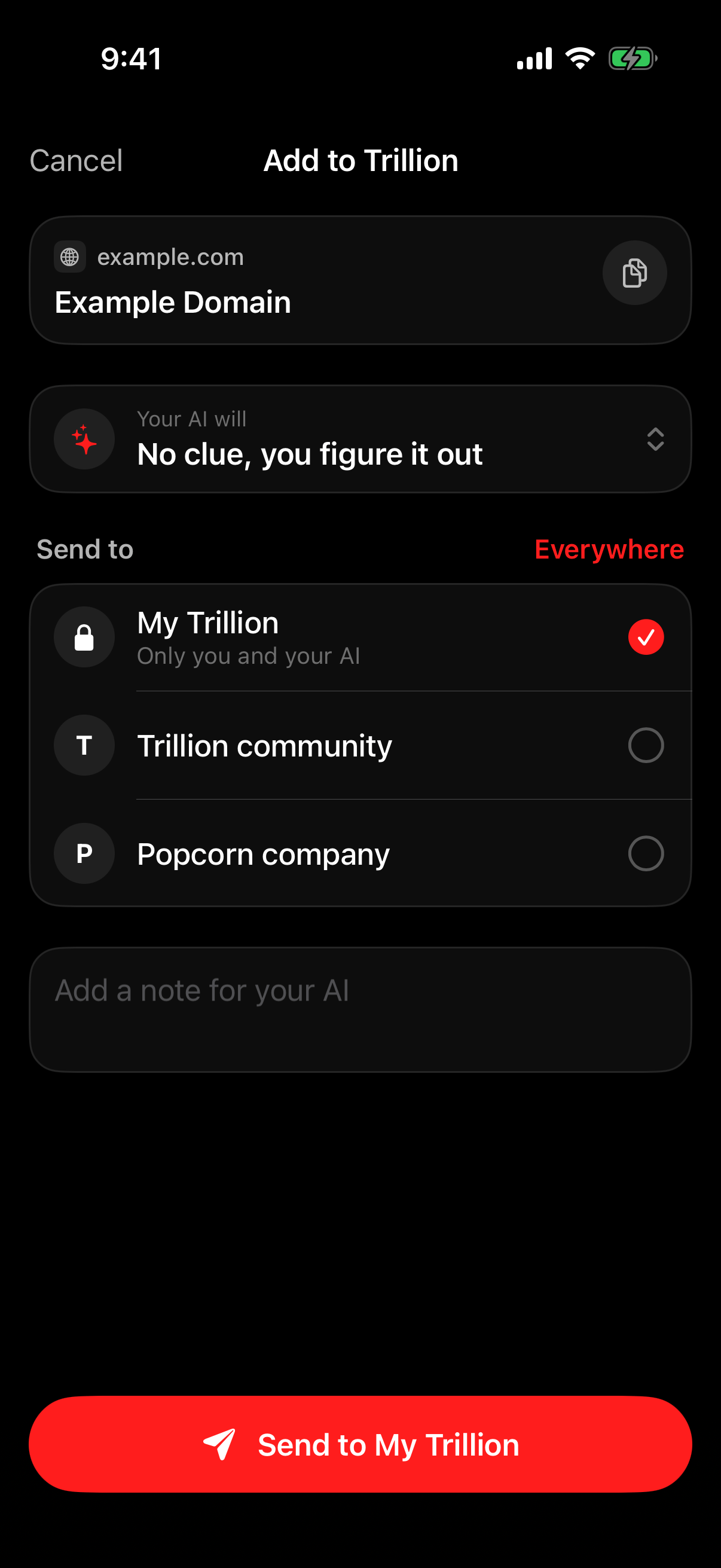
The Add to Trillion sheet: what you are sharing, what your AI will do, where it goes, and a note.
Put Trillion first in the Share sheet
You do this once.1
Tap Share in any app
Open something you want to keep, such as a photo, a page in Safari or a reel, and tap the Share button (the square with the arrow pointing up).
2
Swipe the row of apps to the end and tap More
The row of app icons scrolls sideways. Swipe it left until you reach More, the grey circle with three dots.
3
Tap Edit
Edit is at the top right. The list shows Favorites at the top and Suggestions under it.
4
Tap the green plus next to Trillion
Trillion is under Suggestions. The plus moves it into Favorites.
5
Drag it to the top of Favorites
Touch and hold the three lines at the right of Trillion and drag it above the others.
6
Tap Done
Tap Done at the top right, then Done again. From now on Trillion is first whenever you tap Share.
Send something
1
Tap Trillion in the Share sheet
The sheet opens with what you are sharing at the top.
2
Pick what your AI should do
Tap the action and pick one of your saved instructions. For an Instagram link it starts on Study this content format; for anything else, No clue, you figure it out works.
3
Choose where it goes and add a note
Under Send to, My Trillion is on. Turn on a shared space to share it with the people in it, or Everywhere for all of them. Type a note if you want to say more.
4
Tap Send
The sheet closes once Trillion has kept it. If something goes wrong, the sheet stays open and says why.
Signing in
Open the app and tap Sign in to Trillion, then use your passkey. The Share sheet uses the app’s sign-in, so if you share before signing in, it asks you to open Trillion and sign in once, then share again.Getting the app
The Trillion iPhone app is not in the App Store or on TestFlight, so there is no public install link. It runs on iOS 18 or later.On Android there is nothing to install from a store either: open app.gettrillion.ai in Chrome on Android, sign in, and install it as an app from Chrome’s menu. Trillion then appears in the Android share menu. After you share, a page shows a preview of what you shared and the same places and instructions as the iPhone sheet; tick the places, pick the instruction, and tap Send. What you share is kept under Shared from Android in your Files.